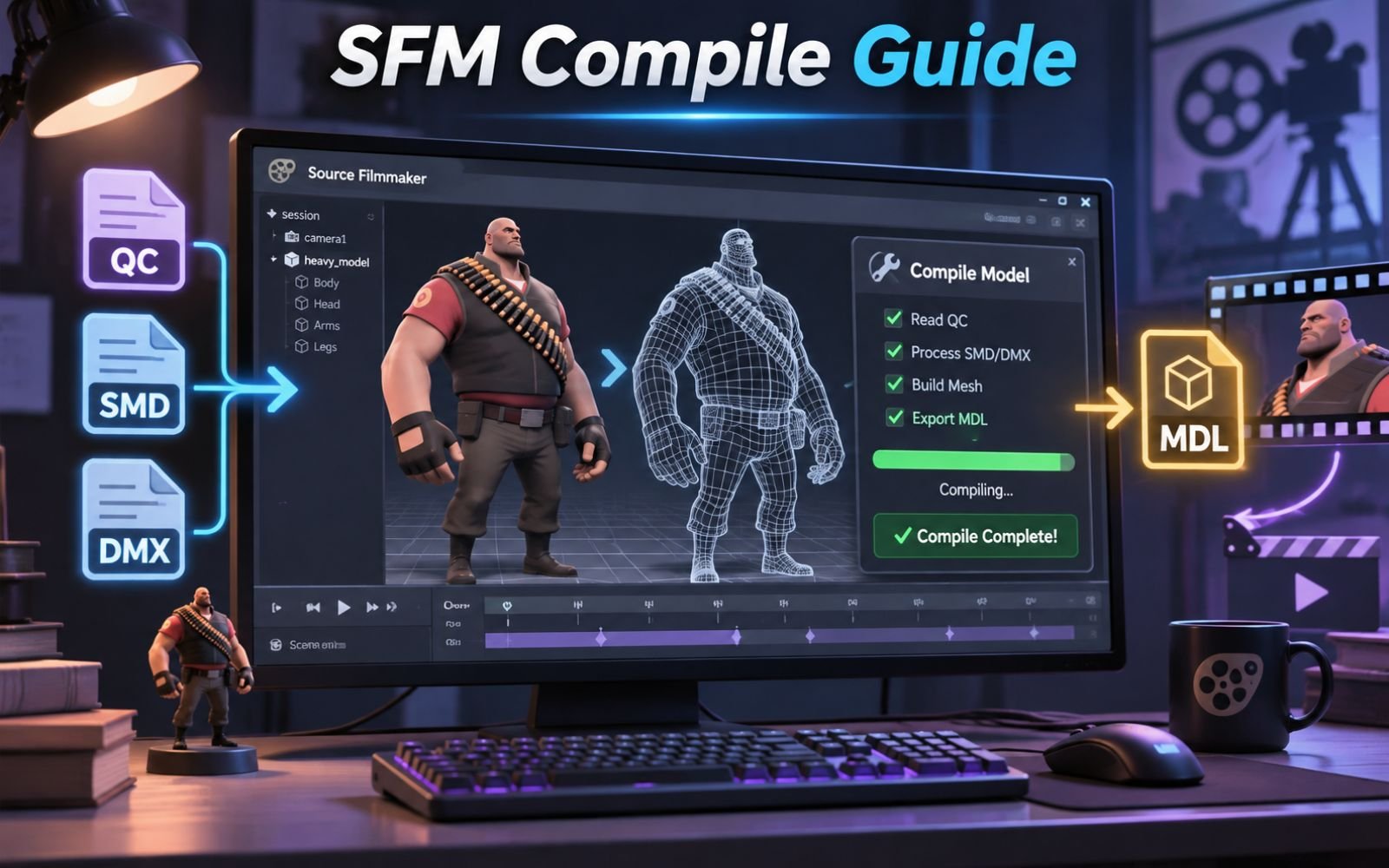
SFM compile is an important process for bringing custom 3D characters, props, and other assets into Source Filmmaker. If you have created a model in Blender but cannot import it directly into SFM, you need to understand how model compilation works. It converts compatible 3D model files into formats that Source Filmmaker can recognize and use. In this guide, you’ll learn which tools you need, how to compile custom models step by step, and how to fix common compilation errors.
This is where SFM compile becomes important. It is the process of converting your 3D models and related assets into formats that Source Filmmaker can understand and use.
Whether you are working with custom characters, game props, animations, or other 3D assets, understanding model compilation can make your workflow much easier. This guide explains what SFM compile means, which tools you need, how to compile a model step by step, and how to solve common problems.
What Is SFM Compile?
SFM compile refers to preparing and converting custom 3D assets into formats that the original Source Filmmaker can load.
Source Filmmaker is a movie-making and animation application developed by Valve. It allows creators to produce animated scenes using characters, objects, environments, lighting, and other assets from games built on the Source engine.
However, SFM does not directly support every standard 3D project format. For example, you cannot simply place a regular Blender project (.blend) or an FBX file into the model browser and expect it to work.
Instead, custom models generally need to be exported into compatible formats, such as SMD or DMX, and processed through Valve’s StudioMDL compiler.
A typical SFM compilation process involves:
- Preparing a 3D model in Blender or another modeling application.
- Exporting the model into an SFM-compatible format.
- Creating a QC file containing compilation instructions.
- Preparing textures and materials.
- Running the compiler to generate the finished model files.
- Testing the model inside Source Filmmaker.
The final result is a compiled model that SFM can recognize and load into an animation project.
How Does the SFM Compilation Process Work?
SFM compilation works by taking several individual asset files and processing them according to instructions provided in a QC file.
Think of the QC file as a blueprint. It tells the compiler which model to use, where to find its materials, which animations to include, and where to save the finished output.
Here is a simplified overview:
- Create the model: Design your character, object, or prop in Blender, Maya, or another 3D application.
- Export the model: Convert the geometry and animation data into SMD or DMX files.
- Prepare materials: Create the necessary texture and material files.
- Write the QC file: Specify the model’s name, source files, materials, and other settings.
- Run StudioMDL: Use the compiler to process the QC instructions.
- Test the output: Open the compiled model in a model viewer and then load it into SFM.
After successful compilation, the process generates a collection of files that work together to make the model usable.
Tools You Need for SFM Compile
Before compiling your first model, you should understand the tools involved. Most of them are available for free, making it possible to create custom SFM assets without purchasing expensive software.
1. Source Filmmaker
Source Filmmaker is the main application where you will eventually use your compiled models. It includes the original Source engine environment and the tools needed for working with supported assets.
You can download it through Steam without purchasing the software.
2. Crowbar
Crowbar is a community-developed graphical tool for compiling and decompiling Source engine models.
It provides a more accessible interface for running StudioMDL without manually entering complicated commands every time.
Its useful features include:
- Compiling custom models.
- Decompiling compatible existing models.
- Viewing compilation logs.
- Configuring game directories.
- Processing multiple QC files.
Crowbar is particularly helpful for beginners who prefer a graphical workflow.
3. Blender
Blender is a free 3D modeling application that helps you create, edit, rig, and prepare custom models.
You can use it to design characters, create props, adjust UV maps, prepare skeletons, and export models into formats supported by the Source engine.
4. Blender Source Tools
Blender Source Tools is an add-on that helps export models and animations from Blender into Source-compatible formats, including SMD and DMX.
It is useful when transferring custom Blender projects into the Source Filmmaker environment.
5. VTFEdit
VTFEdit is used to work with Valve Texture Format files.
Source engine materials commonly use two important file types:
- VTF: Stores the actual texture image.
- VMT: Contains material instructions, including the shader and texture references.
Both files need to be prepared correctly for custom textures to display properly.
6. Text Editor
A simple text editor is also necessary because QC and VMT files contain readable instructions.
You can use Notepad, Notepad++, or Visual Studio Code to create and edit these files.
How to Compile a Model in SFM: Step-by-Step Guide
Once your tools are ready, you can begin compiling your first custom model. The following workflow is suitable for a basic model or prop.
Step 1: Prepare Your 3D Model
Start by creating or importing your model into Blender.
Before exporting, check the following:
- The geometry is properly connected.
- The model has suitable UV mapping.
- The scale and orientation are correct.
- Materials are assigned properly.
- The model does not contain unnecessary geometry.
If you are creating an animated character, you should also prepare its armature and weight painting.
A clean model is easier to export and troubleshoot later.
Step 2: Export Your Model as SMD or DMX
Source Filmmaker requires compatible model data rather than a standard Blender project.
Install and configure Blender Source Tools to export your model into SMD or DMX format.
Generally, these formats serve different purposes:
- SMD: A widely used format for model geometry and animation data.
- DMX: A more feature-rich format that supports additional model information.
Choose the format that suits your project and the tools you are using.
Keep your exported files organized in a dedicated project folder.
Step 3: Prepare Your Textures and Materials
A model may compile successfully but still appear with missing or incorrect textures.
To avoid this problem, prepare your materials before running the compiler.
First, export your texture images from Blender. Then convert them into VTF files using a compatible texture tool.
Next, create the corresponding VMT files.
For example, a basic VMT file might look like this:
"VertexLitGeneric"
{
    "$basetexture" "models/custom/my_model"
}
This tells the Source engine which texture to use for the material.
Make sure the material name and directory match the paths referenced by your QC file.
Step 4: Create a QC File
The QC file is one of the most important parts of SFM compile.
It tells StudioMDL how to assemble your model and where to place the finished files.
Create a new text document and save it with a .qc extension.
Here is a basic example:
$modelname "custom/my_model.mdl"

$body "body" "my_model.smd"

$cdmaterials "models/custom/"

$surfaceprop "metal"

$sequence idle "my_model.smd" loop fps 30
Each command has a specific purpose:
$modelnamedefines the name and output location of the compiled model.$bodyidentifies the reference geometry file.$cdmaterialsspecifies the material directory.$surfacepropdefines the physical surface properties.$sequencedefines an animation sequence.
The example is a starting point, not a universal QC file. Animated characters, props, and models with physics may require additional commands and different source files.
Step 5: Configure Crowbar
Now that your model files and QC script are ready, open Crowbar.
Follow these steps:
- Navigate to the Compile tab.
- Select Source Filmmaker as the target game.
- Configure the correct game directory.
- Locate your QC file.
- Check the output directory.
- Review the compiler settings before starting.
For a standard Steam installation, the SFM game directory is commonly located at:
Steam\steamapps\common\SourceFilmmaker\game\usermodThe compiler itself is generally located at:
Steam\steamapps\common\SourceFilmmaker\game\bin\studiomdl.exeYour actual installation path may differ if you installed Steam or SFM on another drive.
Step 6: Run the SFM Compile
After configuring Crowbar, select your QC file and click the Compile button.
Crowbar will run StudioMDL and display the compilation log.
During this process, the compiler reads your QC instructions, processes the referenced model files, and generates the required output.
A successful compilation should produce the main .mdl file and its supporting model files.
If compilation fails, do not immediately change everything. Read the first meaningful error in the log and investigate the specific file or command causing the problem.
Step 7: Test Your Compiled Model
Compilation is not the final step. You should test the output before using it in a complete animation project.
First, open the model in Half-Life Model Viewer (HLMV), if available in your setup.
Check the following:
- Does the model appear correctly?
- Are the textures loading?
- Is the model facing the correct direction?
- Are the bones and animations working?
- Does the model have the expected scale?
After checking the model, launch Source Filmmaker.
Open a session and right-click in the Animation Set Editor. Select Create Animation Set for New Model and locate your compiled model.
If everything is configured correctly, your custom model should appear in the scene.
Important SFM Compile File Formats Explained
Understanding the file extensions makes troubleshooting much easier.
| File Format | Purpose |
|---|---|
| .QC | Contains model compilation instructions |
| .SMD | Stores model geometry or animation data |
| .DMX | Stores model and animation data |
| .MDL | Main compiled model file |
| .VVD | Stores vertex data |
| .VTX | Stores optimized model rendering data |
| .PHY | Contains physics information when generated |
| .VTF | Stores Source engine textures |
| .VMT | Defines material properties and texture references |
Remember that the compiled model is not necessarily a single file. Its supporting files must remain together in the correct directory.
Common SFM Compile Errors and How to Fix Them
Even experienced creators encounter compilation problems. Most errors happen because of incorrect file paths, missing assets, invalid QC instructions, or incompatible model data.
Here are some common issues and their possible solutions.
1. Missing Model or Source File Error
This error usually appears when the QC file references an SMD or DMX file that the compiler cannot locate.
How to fix it:
- Check the file name in your QC script.
- Confirm that the referenced file exists.
- Verify the folder structure.
- Check for spelling mistakes.
- Make sure the export completed successfully.
2. Purple and Black Checkerboard Textures
The purple-and-black checkerboard pattern usually indicates that the Source engine cannot find or load the required material.
How to fix it:
- Check whether the VTF texture exists.
- Verify the corresponding VMT file.
- Review the
$cdmaterialspath. - Check the
$basetexturereference. - Make sure the material folder is in the correct location.
3. Model Does Not Appear in SFM
Sometimes the compilation finishes successfully, but the model is missing from Source Filmmaker.
This can happen when the output directory does not match the path specified in the QC file.
How to fix it:
- Check the
$modelnamecommand. - Locate the generated MDL file.
- Confirm that its supporting files are present.
- Check the SFM usermod models directory.
- Restart Source Filmmaker and try loading the model again.
4. Incorrect Model Scale
A model that looks normal in Blender may appear extremely large or small in SFM.
This often happens because of different export scale settings.
How to fix it:
- Review the export settings in Blender.
- Check the model’s unit configuration.
- Verify the model’s scale in the QC file.
- Test a small export before compiling the complete project.
5. Compilation Stops With a QC Error
A missing quotation mark, incorrect command, or invalid file reference can stop the compilation process.
How to fix it:
- Open the QC file in a text editor.
- Review the command mentioned in the error.
- Check quotation marks and file names.
- Confirm that all referenced files exist.
- Compile again after correcting the problem.
The best troubleshooting approach is to fix one error at a time. This makes it easier to identify the actual cause instead of introducing additional problems.
Crowbar vs. StudioMDL: Which SFM Compile Method Is Better?
There are two common ways to run the Source model compiler.
Crowbar provides a graphical interface, while StudioMDL allows you to run the compilation process directly through the command line.
| Feature | Crowbar | StudioMDL |
|---|---|---|
| Interface | Graphical | Command line |
| Beginner-friendly | Yes | Less beginner-friendly |
| Compilation | Yes | Yes |
| Error logs | Built-in log window | Console output |
| Automation | Supports batch workflows | Suitable for scripting |
| Best for | Beginners and regular use | Advanced users |
For most beginners, Crowbar is the easier option because it simplifies compiler configuration and provides a convenient way to review errors.
However, learning StudioMDL directly can be useful when you need more control over your compilation workflow.
Tips for Better SFM Compilation Results
A few good habits can save you considerable time when working with custom SFM assets.
- Keep project files organized: Store models, textures, animations, and QC scripts in clearly named folders.
- Use descriptive file names: Avoid confusing names that make it difficult to identify the correct assets.
- Compile regularly: Test your model during development rather than waiting until everything is finished.
- Check materials separately: Make sure textures work before assuming the model compiler is responsible for a visual problem.
- Read compilation logs: The first meaningful error often provides the most useful information.
- Create backups: Save earlier versions of your QC files before making major changes.
- Test animations: A successful model compile does not automatically guarantee that every animation works correctly.
- Respect asset permissions: Only distribute models, textures, and other assets when you have the necessary rights or permission.
These practices help maintain a reliable workflow, especially when working on larger character or animation projects.
Is SFM Compile the Same as Rendering a Video?
No. Compiling and rendering are two different processes in Source Filmmaker.
Compilation prepares custom models and other supported assets so the Source engine can load them.
Rendering is the process of producing the final images or video from your completed SFM scene.
For example, you may need to compile a custom character before adding it to your animation. Once your scene is ready, you can animate the character, adjust lighting, position the camera, and render the finished sequence.
Understanding this difference helps you choose the correct workflow for your project.
Frequently Asked Questions About SFM Compile
1. What does SFM compile mean?
SFM compile refers to converting custom 3D models and related assets into formats that the original Source Filmmaker can load. It generally involves exporting model data, preparing a QC file, and running StudioMDL.
2. Is SFM compile a separate software program?
No. SFM compile is a process rather than a standalone application. It commonly uses StudioMDL, with Crowbar providing a graphical interface for running the compiler.
3. Is Crowbar necessary for SFM compilation?
No. Crowbar is not mandatory because you can run StudioMDL directly. However, Crowbar makes the process easier for beginners by providing graphical controls and compilation logs.
4. Can I compile Blender models directly in SFM?
Not in their original Blender format. You generally need to export the model into a compatible format, such as SMD or DMX, and prepare a QC file before running StudioMDL.
5. What is a QC file in SFM?
A QC file is a plain-text instruction file that tells StudioMDL how to compile a model. It defines information such as the model name, source geometry, materials, animations, and other compilation settings.
6. Where are compiled SFM models saved?
Compiled models are commonly placed inside the SFM usermod models directory. The exact output location depends on the $modelname command in your QC file and your compiler configuration.
7. Why does my SFM model have purple and black textures?
This usually happens when Source Filmmaker cannot locate or load the required material. Check your VMT and VTF files, texture references, and material directory paths.
8. Does SFM compile support animated characters?
Yes. You can compile animated characters using compatible model and animation data. However, the model must have correctly prepared bones, reference geometry, animation sequences, and appropriate QC instructions.
9. Can I compile multiple SFM models at once?
Yes. Crowbar supports batch compilation, which allows you to process multiple QC files. This is particularly useful when working with character packs, multiple props, or large asset collections.
10. Does SFM compile work with Source 2 Filmmaker?
The traditional StudioMDL and Crowbar workflow described in this guide is intended for the original Source Filmmaker, which uses Source 1 technology. Source 2 uses a different asset pipeline, so the same compilation instructions do not directly apply.
Conclusion
Understanding SFM compile is essential if you want to bring custom characters, props, and other 3D assets into Source Filmmaker.
The process becomes much easier once you understand the role of each tool. Blender helps you prepare models, Blender Source Tools handles compatible exports, QC files provide compilation instructions, and StudioMDL converts the prepared assets into formats that SFM can use.
For beginners, Crowbar is a convenient place to start because it simplifies the compilation process and makes errors easier to investigate.
Start with a simple model, follow each step carefully, and test your output before moving on to more complicated characters and animations. With practice, you will be able to prepare and compile custom assets more confidently.